VPS deals reader question
How to verify a VPS billing term at checkout
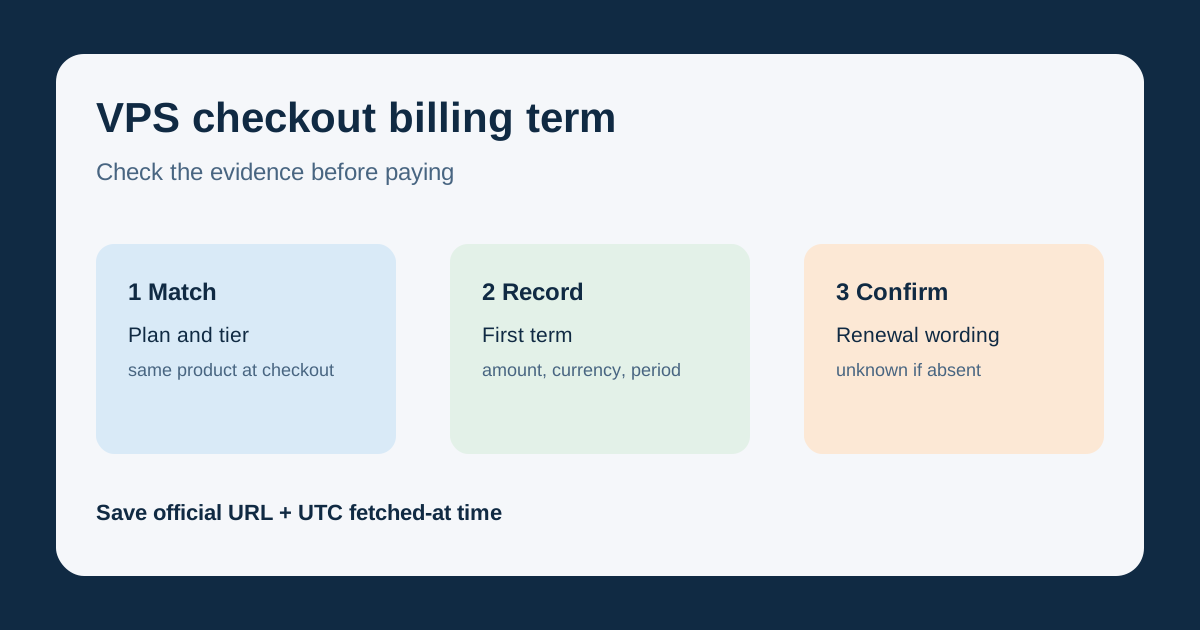
Answer: before paying, confirm that checkout shows the same plan, currency, first billing period, and recurring charge as the provider's public VPS page. If the recurring term is absent, leave it unknown and stop before placing the order.
Capture four fields before you click pay
- Plan identity: match the exact plan name and resource tier. A checkout upgrade or add-on can change the term you are checking.
- First term: record the displayed amount, currency, and period, such as monthly, annual, or a stated three-month promotion. Do not convert a longer term into a monthly figure unless the provider labels it that way.
- Renewal wording: look for “renews at,” “recurring,” or “after the initial term.” Copy the provider's amount exactly; a percentage discount alone does not establish the resulting renewal price.
- Evidence: save the official source URL and UTC fetched-at time next to your checkout note. Terms can change between a landing page and checkout.
What today's official records show
The collection checked Hostinger's public VPS page and IONOS's public VPS page at 2026-10-18T01:03:44Z. It recorded four Hostinger plans and five IONOS plans. The IONOS titles identify a “3-month promotion,” but the collected fields contain no verified post-promotion amount, so renewal remains unknown in this site's data.
Decision rule: if checkout does not state the recurring charge, do not infer it from the first-term price. Ask the provider or return when the official terms are explicit.
Use the renewal-price checklist and field-by-field verification guide for the rest of the audit.
Last collection attempt: 2026-10-18T01:03:44Z. Confirm current terms on the provider page and checkout before paying.